The first FLUX 3 decision happens before you write the prompt: how much of the image has already been approved?
If the visual idea is open, text-to-video lets you explore a scene. If the product, character or composition has already been chosen, an opening image gives the motion a more specific starting point.
Black Forest Labs documents both routes with synchronized audio. This guide combines its documentation with the settings exposed by vusion.art, checked on 7 October 2026. The sample directions are original, untested examples.
Decide what you are asking the model to invent
| Decision | Start with text | Start with an image |
|---|---|---|
| The useful question | What could this shot look like? | What should happen after this frame? |
| Your starting material | A scene brief | An approved still and a motion brief |
| Direct explicitly | Subject, setting, action, camera and sound | Action, camera travel and sound |
| Review closely | The whole visual proposal | Motion and changes to the approved design |
An image anchors the beginning. Review the rest of the clip to find out whether the details remain correct.
Give the scene a small, readable action
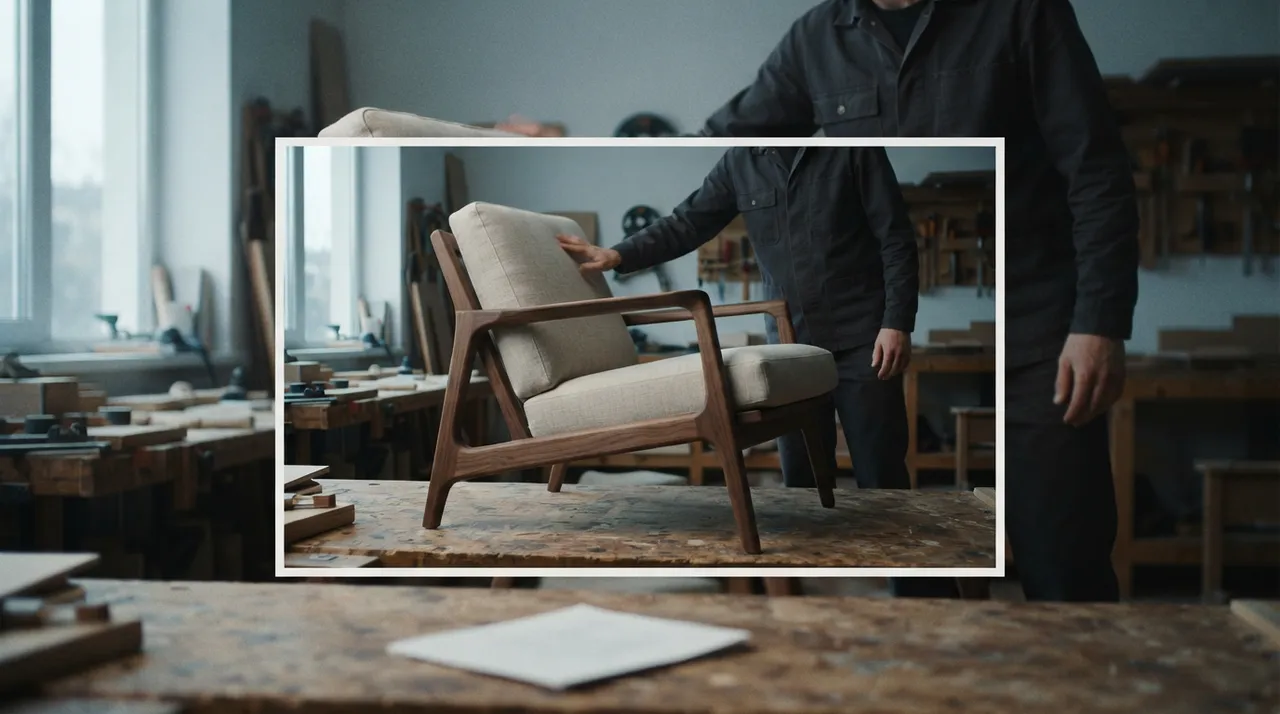
Consider a furniture workshop before opening. A craftsperson notices one loose thread on a finished chair and removes it. The action communicates care without requiring a complicated sequence.
BFL's text-to-video guidance describes prose and timed beats. For this illustrative eight-second shot, a brief could be:
One continuous shot inside a contemporary furniture workshop before opening. A craftsperson notices a loose thread on a chair, leans closer and removes it, then steps back to inspect the seat. The camera tracks gently sideways at seat height. Cool window light and restrained natural colour. Cloth brushing upholstery, a small footstep and a distant ventilation fan. No dialogue or music.
Set the duration in the workflow controls. The first review is simple: can you read the action and the camera movement? Add complexity after those elements work.
Once the frame is approved, direct the change
For the same idea, supply an approved workshop image and shorten the direction:
Begin on the supplied frame. The craftsperson removes one loose thread from the chair, lowers the hand and takes a small step back. The camera moves slowly to the right, revealing a little more of the chair's near side. Keep the room arrangement and light consistent. Cloth brushes the upholstery; a shoe touches the floor. No dialogue or music. One continuous shot.
This is a second untested example. It uses the still for the starting design and the text for what happens next.
Before submitting an image, check the chair's proportions, the hands and the room geometry. Starting from a flawed frame gives you a problem to solve before motion has even begun.
BFL's image-to-video documentation describes single opening images, start/end pairs and timed keyframes. The inspected vusion.art image workflow accepts one to nine images; its exposed settings do not establish how additional images map to endpoints or timestamps.
Treat sound as part of the scene
Name the sources you expect to hear. The workshop example gives the clip cloth, a footstep and a fan; it does not need an invented conversation.
For speech, specify the line, intended dialect and delivery. BFL's audio guide provides prompting guidance, but Arabic pronunciation and performance still require review by a fluent listener.
Check recurring voices across clips separately. Similar direction does not establish the same performer.
The controls available at vusion.art
The authenticated workflow check returned:
| Setting | FLUX 3 Text to Video | Flux 3 I2v |
|---|---|---|
| Inputs | Text | Text and 1 to 9 images |
| Duration | Auto or 5 to 20 seconds | Auto or 5 to 20 seconds |
| Resolution labels | 720p or 1080p | 720p or 1080p |
| Aspect ratios | Auto, 21:9, 2:1, 16:9, 4:3, 1:1, 3:4, 9:16 | Same options |
| Prompt limit | 5,000 characters | 3,000 characters |
Neither settings list exposed an audio switch, Draft mode or video continuation. Both workflows describe sound generated with the image. Access remains subject to the account.
BFL's video specification distinguishes native HD generation from larger upscaled outputs. Treat the 1080p menu label as a delivery option and inspect the exported dimensions and detail.
The article button opens the text-to-video workflow. For an approved starting still, select Flux 3 I2v in vusion.art.
Keep the first review specific
Check the intended action, camera route, product or character details, sound and fit with the edit. Save the prompt, settings and result. Change one meaningful instruction before the next attempt so you can understand the difference.
Use text to explore the image. Use an approved image to direct what happens next.
For a wider model shortlist, see the AI video scoreboard.
Editorial note: Research-based overview, checked 7 October 2026; no generation test or performance rating is claimed. Published by vusion.art. The cover is an editorial illustration.